Channels
Connecting ReadyChatAI to the places your customers already write to you
Path: AI Configuration > Channels
Every conversation your bot handles arrives through a channel. This page is where you connect them, see which ones are healthy, and turn the bot on or off for each connected account.
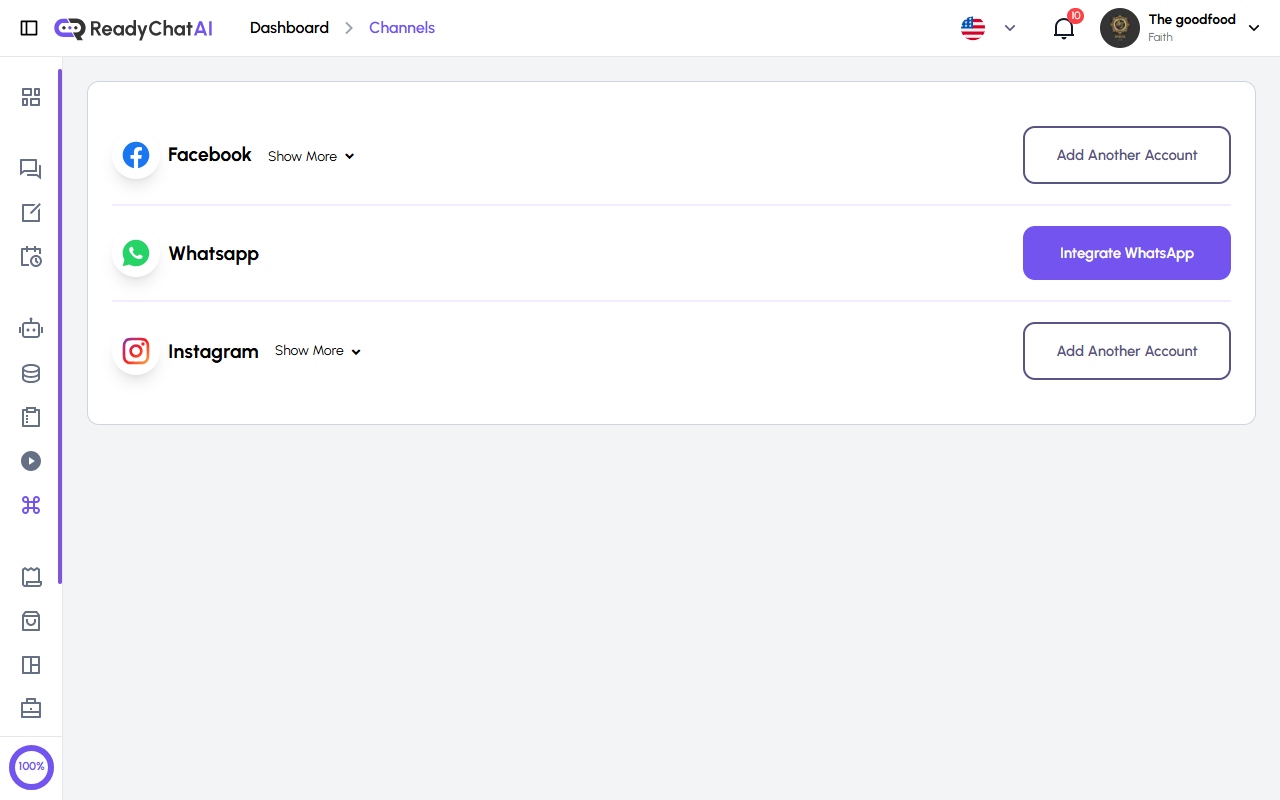 The Channels page, with one card per platform.
Before you connect: the warning at the top
If you haven't added a product, an FAQ answer, and a checkout question yet, a yellow notice appears above the cards: "Your bot may provide inaccurate responses". Each pending step is a button that takes you straight there. The notice tracks those three specific tasks — it can still show even with FAQs already in your knowledge base, if a product or checkout question is still missing.
Take it seriously. Connecting a channel puts the bot in front of real customers immediately — it starts answering new messages as soon as they arrive. A bot with no products and no answers will still reply; it just won't have anything to say.
Supported platforms
| Platform | What it covers |
|---|---|
| Messenger conversations and comments on your Page | |
| Customer messaging through the WhatsApp Business API | |
| Direct messages and comments |
Each one is a card with the platform name and a button: Add Another Account for Facebook and Instagram, Integrate WhatsApp for WhatsApp.
Website chat has its own card, with nothing to connect
A Website Widget card sits among the others, but its button skips straight to the configuration screen instead of a connect flow — there's no account to log into. Configure, restrict and install the widget under AI Configuration > Configure > Website Widget. See Website Widget.
Connecting Facebook
You need to be an Admin of the Page and ready to grant every permission Facebook's login window asks for. Click Add Another Account and sign in to Facebook.
If that login manages more than one Page, ReadyChatAI stops and asks you which one to connect. A window titled "Choose which pages to connect" lists every Page the login can manage:
- Pages you can connect start already ticked. Untick any you don't want.
- Pages already connected here show a green "Already connected" mark and can't be unticked — they're staying.
- Pages connected to another business are greyed out and can't be selected. The tooltip explains why: disconnect the Page from that other business first.
The counter at the bottom shows how many you have selected out of how many you could. Connect selected stays disabled until at least one is ticked.
If the login manages exactly one Page, there is nothing to choose and no window appears — the Page connects directly.
You may see the Facebook dialog twice. ReadyChatAI asks Facebook once to list your Pages and once to make the connection. The second one usually closes by itself, because you have already granted permission. Let it finish.
The picker only appears when you connect a new account from this page. Reconnecting an existing account keeps its Page and never asks.
Connecting Instagram
Your account must be a Business or Creator account (not personal) linked to a Facebook Page you administer. Click Add Another Account — you'll sign in on Instagram's own screen, not Facebook's. Instagram brings both direct messages and comments.
Connecting WhatsApp
Click Integrate WhatsApp. First, ReadyChatAI asks whether you're connecting a number already active on WhatsApp or a brand-new one — an active number needs the WhatsApp Business app on the phone plus a confirmation code; a new number just needs to be unregistered and able to receive an SMS or a call.
Connect from a computer: a mobile browser can't receive Meta's popup result, so phone connections fail almost every time even when Meta's screens look successful.
The button is disabled, with a link to Meta's support page, if you're connecting from Cuba, Iran, North Korea, Syria, Ukraine, Turkey, or Kosovo — there's no override; resolve that with Meta directly. Certain African countries get a warning instead, since Meta has a pattern of restricting WhatsApp accounts that connect automation tools from that region. You can proceed after acknowledging it, but ReadyChatAI can't reverse a ban Meta applies.
WhatsApp runs on the WhatsApp Business API, which has its own requirements — a business phone number Meta can verify, among others — so this flow is longer than the Facebook and Instagram ones and is driven by Meta, not by ReadyChatAI.
Managing a connected account
Once a platform has at least one account, a Show More link appears next to its name. Open it to see every connected account, each with:
- Its status — Connected or Disconnected.
- Chat Auto-Reply — the switch that decides whether the bot answers messages on this account. Turn it off and the account stays connected but the bot goes quiet; you answer by hand from Messages.
- Comment Auto-Reply — the same idea for comments on posts. Only on Facebook and Instagram; WhatsApp has no comments.
- Reconnect — for when the connection has expired or broken.
- Log out — disconnects the account immediately, with no confirmation step. On WhatsApp it also deregisters the number from WhatsApp Business on Meta's side, so reconnecting later may mean phone verification from scratch.
Chat Auto-Reply and Comment Auto-Reply both turn on automatically the moment you connect a Facebook or Instagram account, with no opt-in step. To review your knowledge base or recent comments before the bot replies publicly, switch the toggles off right after connecting.
Reconnecting, and the mistake it's designed to prevent
Before reconnecting, ReadyChatAI shows a short confirmation: "Before reconnecting", reminding you to be signed in to the correct account in this browser first, and to sign out of the others if you manage several. Only then does it continue.
This is worth reading rather than clicking through. The reconnect uses whichever account the browser is currently signed in to — if that's the wrong one, you connect the wrong account.
If a reconnect fails, the message you'll see asks you to check you're on the right account and to disable any ad blocker for this site. Ad blockers are a common cause: they block the Facebook window before it can open.
When something isn't working
A channel says "Disconnected". Social platforms expire their permissions periodically, and changing your Facebook or Instagram password can end them early. Use Reconnect on that account.
Messages arrive but the bot doesn't answer. Check Chat Auto-Reply on that specific account — it's per-account, so the bot can be answering on one Page and silent on another. Also check the conversation itself in Messages: the bot pauses on a conversation where a person from your team has replied.
Comments aren't getting replies. Check Comment Auto-Reply on that account. It's a separate switch from chat.
For the attachment formats each connected channel can understand or deliver, see Media and Channel Differences.