Appointments
Appointments is where every booking lands — the ones your bot takes in chat, the ones customers make through your Booking Page, and the ones your team enters by hand.
Path: Commerce & Services > Appointments. In a real-estate account that sidebar section is named Real Estate instead — see Real Estate Mode.
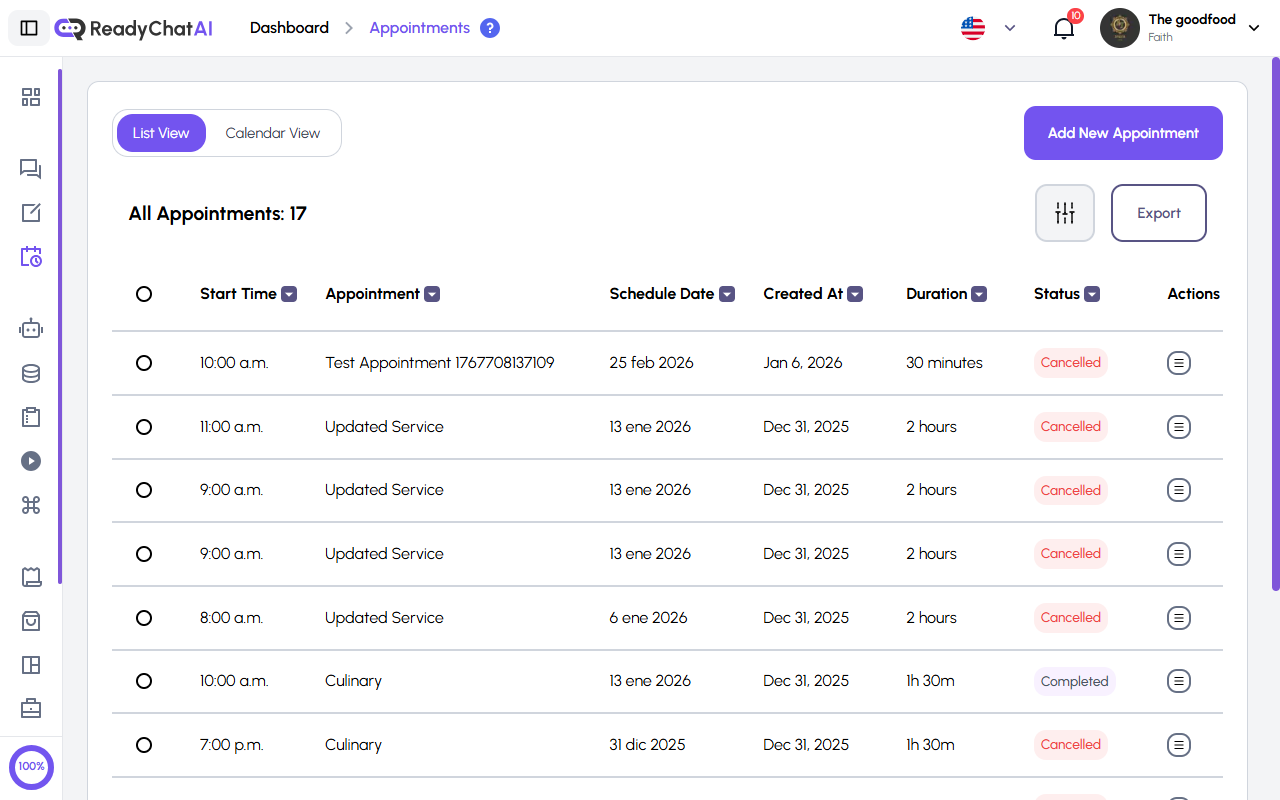 The Appointments page in List View.
The two views
A toggle at the top switches between List View and Calendar View. List View is the default and is where all the management tools live.
List View
The columns
| Column | What it shows |
|---|---|
| Start Time | The time the appointment starts |
| Appointment | The appointment title. Bookings made through the booking page are titled after the service |
| Customer | The customer's photo or initials, and their name |
| Schedule Date | The day the appointment is scheduled for |
| Created At | When the record was created |
| Duration | How long it lasts |
| Reminders | Whether each reminder actually reached the customer |
| Status | The current status |
| Actions | The menu for that row |
Every column can be sorted and filtered except Customer and Reminders, which are display-only. When you open a filter, the options come from your own appointments, so you only see values that actually exist. The list is paged 10 rows at a time.
Start Time and Schedule Date show the appointment exactly as booked, in your business timezone.
Created At is different: it converts to the timezone of whoever is looking, so two people in different countries can see different creation times for the same appointment.
Statuses
There are five.
| Status | What it means |
|---|---|
| Upcoming | Booked and still ahead |
| Confirmed | Confirmed by the customer in chat, or by your team |
| Completed | It happened |
| Cancelled | It was cancelled |
| No Show | The customer did not turn up |
A booking the bot closes in chat confirms itself. The moment the customer says yes, it moves straight to Confirmed — no staff action needed. Only a booking made purely on the booking page starts as Upcoming and waits for a person to move it. Either way, once the appointment's end time passes, a scheduled check marks it Completed automatically, usually within 15 minutes, whether it was Upcoming or Confirmed, and whether or not anyone checked the customer in. If your list is full of Upcoming rows, nothing is broken; those simply haven't happened yet.
Which status can become which
The status dropdown only offers the moves that make sense from where you are:
- Upcoming → Confirmed, or Cancelled
- Confirmed → Completed, or Cancelled
- Completed, Cancelled and No Show are final — they show as a plain badge with no dropdown
There is no path into No Show from the list or the status dropdown. An appointment shows that status when it already carries it; you cannot set it from these screens.
Row actions
The menu at the end of each row offers:
- View Details — always available
- Check In — marks it Completed; only shows when Completed is a valid next step
- Reschedule — opens a calendar to move it
- Cancel — only shows when Cancelled is a valid next step
Clicking anywhere on a row opens its detail page.
Who can do what
| Role | What they can act on |
|---|---|
| Administrator | Every appointment |
| Schedule Manager | Every appointment |
| Schedule User | Only appointments assigned to them |
Everyone can open View Details. The other three actions are hidden for anyone outside the table above.
Working on several at once
Tick the checkboxes on the rows you want and a bar appears with:
- Change Status — applies one status to all selected. Only statuses valid for every selected appointment appear, so a mixed selection may offer fewer options than a single row; if nothing is in common, it says so instead of guessing.
- Delete — permanent, and it warns you first.
Both report back honestly: if some succeed and some fail, you get the count of each.
Export
Export downloads your appointments as a file. It exports everything matching your current filters, not just the page on screen — so filter first, then export.
Adding an appointment by hand
Manual creation opens a full form with four sections:
- Appointment Details — a title and an optional description
- Service Selection — pick the service; its default duration is shown
- Scheduling — pick from the service's Available Slots for a chosen date, or switch to Custom Time to set the start and end yourself, for anything outside your normal service hours. You also choose the starting status here
- Customer Information — search and pick an existing customer
The time must be in the future.
No emails go out when you create an appointment by hand — not to you, not to the customer. Emails fire only when a customer books it themselves (see below); tell the customer yourself if they need to know.
Calendar View
Calendar View shows the same appointments laid out on a calendar, with Month, Week and Day modes and Today / Back / Next to move around. Use it to see where the gaps are; use List View to change anything.
What happens when a customer books
When a customer books — through the booking page or by confirming with the bot in chat — three things happen:
- A notification appears in your dashboard bell.
- You get an email with the service, customer, date and time, timezone and duration. If the booking came from a real conversation, it links straight to it, written in your account's language.
- The customer gets a confirmation email — only if you have their email address. Most customers who reach you through WhatsApp or Instagram never give one, so this step is often silently skipped. It's written in the language they were speaking, or your business's language as a fallback.
You can turn appointment emails off from the unsubscribe link in the email itself.
That is the confirmation, sent at the moment of booking. Closer to the appointment the customer is reminded again, by email or by WhatsApp — see Appointment reminders.
The rules that block a booking
Each service carries its own limits, set in Service Management. When one is hit, the booking is refused with a specific message rather than a generic error:
| The limit | What the customer or your team sees |
|---|---|
| Minimum notice | Appointments must be booked at least N hours in advance — and it names the earliest time that is still available |
| Maximum notice | Appointments cannot be booked more than N days ahead — and it names the latest date allowed |
| Appointments per hour | The maximum for that hour has been reached |
| Weekly maximum | The weekly maximum for that service has been reached |
| No hours that day | No service schedule is available for that day |
| Outside hours | The time is not within the service's allowed hours |
| Overlap | It overlaps an existing appointment |
| Cancellation notice | Cancellations must be made at least N hours before the start time |
Related pages
- Service Management — where hours, duration, capacity and the notice limits are set
- Booking Page — what the customer sees when they book themselves
- Checkout Questions — the questions asked during booking; the answers show up on the appointment's detail page