Orders
Orders created by the assistant and orders your team creates manually land here. This is where you see what was ordered, who ordered it and how far along it is.
Where it is: sidebar → Commerce & Services → Orders. A real-estate account has no checkout and does not list Orders in its sidebar at all — see Real Estate Mode.
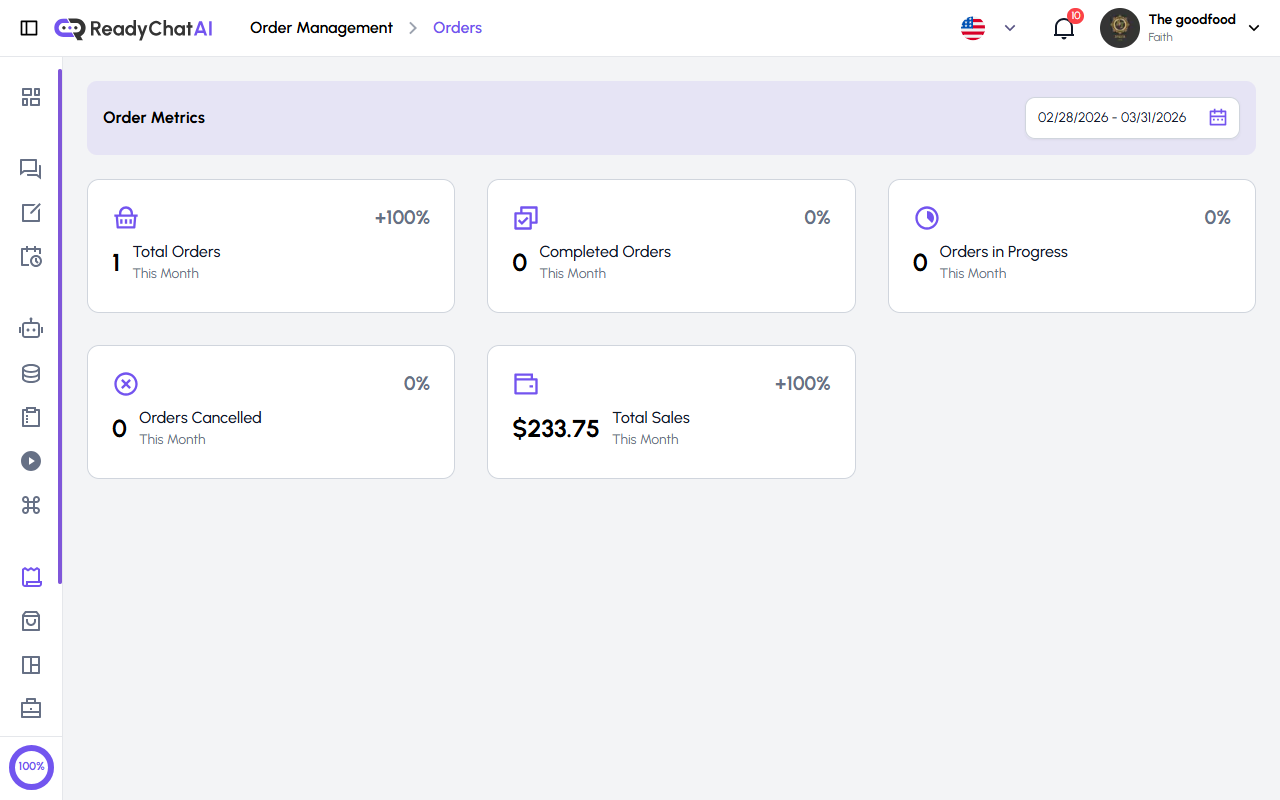 The Order Metrics section with its five cards and the date range picker.
Order Metrics
Five cards, filtered by the date range at the top right:
| Card | What it counts |
|---|---|
| Total Orders | Every order in the period |
| Completed Orders | Orders in the Completed status |
| Orders in Progress | Orders in the In Progress status |
| Orders Cancelled | Orders in the Cancelled status |
| Total Sales | The money from non-Draft, non-Cancelled orders in the period |
Each card shows the percentage change against the previous period.
The statuses, and how an order moves between them
An order goes through these states:
- Draft — started but not finished.
- In Progress — the order is open and being put together.
- Confirmed — accepted and ready to prepare.
- Shipping — on its way.
- Delivered — it reached the customer.
- Completed — closed.
- Cancelled — it will not be fulfilled.
The statuses do not go in any direction you like. Each one only allows certain next steps, and the dropdown only offers you those:
| From | You can move it to |
|---|---|
| Draft | In Progress, Cancelled |
| In Progress | Confirmed, Cancelled |
| Confirmed | Shipping, Cancelled, Completed |
| Shipping | Delivered, Cancelled |
| Delivered | Completed |
| Completed | — it's final |
| Cancelled | — it's final |
Completed and Cancelled are the end of the line. There is no way back from either: if you cancel or complete an order by mistake, you have to create a new one.
Some accounts require a delivery address before Confirmed. If yours does, an order can't reach Confirmed — from the list, the header or Create Order — until it has one on file; orders already in progress when this was turned on aren't affected. The list and header show only a generic error when this blocks a change; Create Order is the one place that names the missing address.
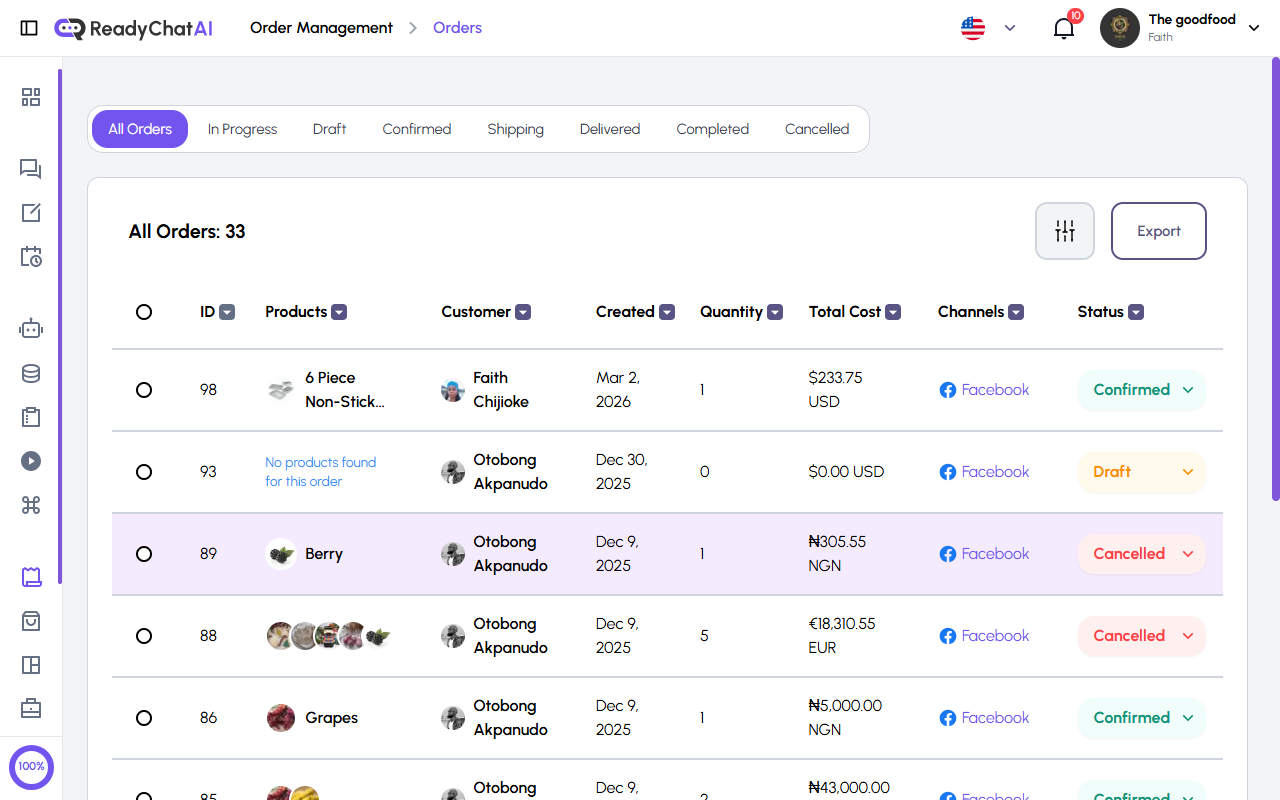 The status tabs and the orders table.
The orders list
Above the table there is a tab per status — All Orders, In Progress, Draft, Confirmed, Shipping, Delivered, Completed, Cancelled — and clicking one filters the list.
The table columns:
| Column | What it shows |
|---|---|
| ID | The order number |
| Products | The items in the order |
| Customer | Who placed it |
| Created | Date it was placed |
| Quantity | Number of products |
| Total Cost | Total value, in the order's currency |
| Channels | Where the order came from — WhatsApp, Facebook, Instagram… |
| Status | A dropdown you can change from the list itself. It only offers the moves allowed from the current status |
| Actions | View order details, cancel the order (only while it's In Progress, Confirmed or Shipping), or delete it |
The header carries a filter button and Export, which downloads the orders you're looking at.
Creating an order manually
Use Create Order to record an order that arrived by phone, in person or by another route. Choose an existing customer, status and products, then add the shipping and billing addresses, payment and shipping methods, tracking details when applicable, and internal notes. Stock and product requirements still apply.
A manual order creates an order record; it does not start a customer conversation or send a confirmation by itself. Use the order number shown after creation as its reference.
Changing several orders at once
Tick the checkboxes and you can change the status of the whole selection in one go. The list of statuses offered is the one that is legal for every selected order: if you pick a Draft and a Confirmed together, only the moves both allow show up.
An order's detail page
Clicking an order opens it, with:
- Header — the order number, when it was placed, when it was paid and when it was last updated, plus Export. "Paid on" only advances when the customer confirms the order in chat; moving it to Confirmed yourself from the dashboard leaves it showing the creation date. Edit Order is also available until the order reaches Completed or Cancelled.
- Customer Details — name, email, phone, channel, address, shipping and billing addresses, order notes, carrier and tracking. For an order started in chat with no matching customer account, these come from what the buyer typed at checkout and are saved on the order itself — they won't reflect a later edit to a real customer profile.
- Checkout Information — the answers the customer gave to your checkout questions while buying.
- Customer Messages — the linked conversation, when the order was created through a real customer conversation. Manual orders and other unlinked orders show no conversation here.
- Products — the line items with their prices and quantities, and the total (their sum — there's no separate shipping charge).
Export produces a PDF of the order to send or file.
Editing an order and adding tracking
Edit Order lets you change:
- Notes on the order.
- The products: add, remove or change quantities. At least one product must remain, and you can't go over a product's available stock.
- Shipping Tracking: the Carrier (FedEx, UPS, DHL…) and the Tracking URL.
Saving new or changed tracking automatically moves the order to Shipping. If the order is tied to an active, connected customer conversation, the platform also sends the shipping notification; otherwise the tracking is still saved.
Any save on this screen notifies the customer, even for a note. For an order linked to a real conversation, saving Edit Order — products, notes, anything — sends the customer a message on their original channel with the updated order and total, asking them to reply CONFIRM or CANCEL. The on-screen "Order updated successfully" message doesn't mention this.
Getting more out of it
- Move the status as reality moves. The metrics and the tabs are only as useful as the statuses are current.
- Be careful with Completed and Cancelled. They can't be undone.
- Fill in the tracking. It keeps the order and, when the connected customer channel is available, the customer up to date.
- Read the conversation when something looks odd. The order's detail page has the chat right there; almost every "why did they order this" is answered in it.