Products
Products are the catalogue the assistant searches when customers ask what you sell. Complete names, descriptions, prices, availability and media produce more useful answers.
Path: Commerce & Services > Products. In a real-estate account this is Real Estate > Properties — same page, renamed; see Real Estate Mode.
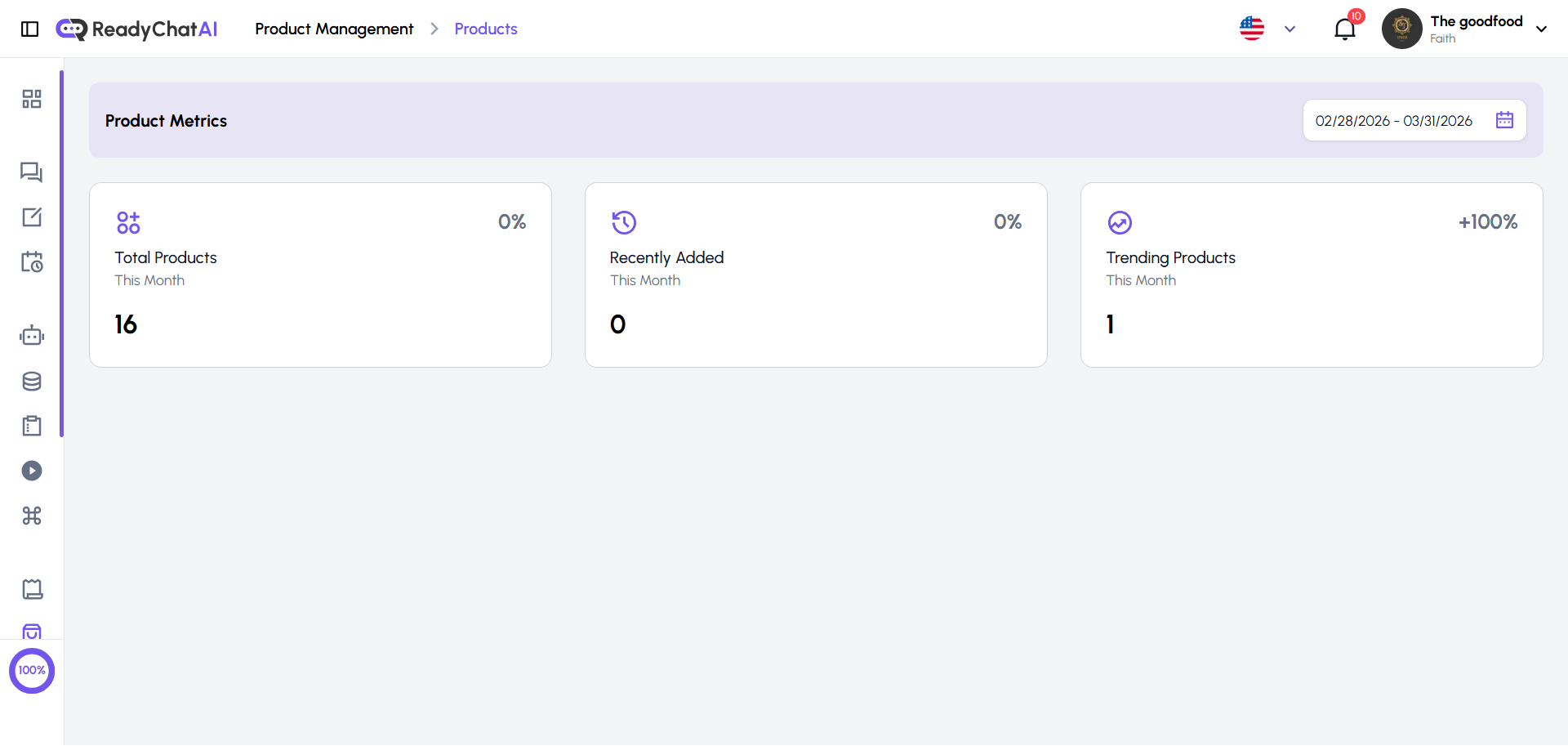 Product Metrics and the catalogue.
The tabs
| Tab | Purpose |
|---|---|
| Products | View and maintain the catalogue |
| Categories | Group products — see Categories |
| Web Scraping | Import from a public store website |
| Import Files | Import from a spreadsheet or document |
See Product Imports for both import workflows. Accounts running the real estate setup see the Products tab labeled Properties and get listing fields (bedrooms, bathrooms, area and similar) added to each one.
Product Metrics
The date-filtered cards show Total Products, Recently Added, and Trending Products. Trending counts distinct products that were ordered in the period, not products that were merely viewed or mentioned. Each card also compares the previous period.
The product list
Use the title dropdown to switch between All Products and Deleted Products. Deletion is recoverable: open the row's Actions menu in Deleted Products and choose Restore Product. Restoring brings back the product itself, but not its former Checkout Questions or FAQs — re-add those by hand if the product had them.
The table shows ID, product and thumbnail, category, price, stock quantity, availability and row actions. Availability can be changed without opening the product. The header also provides filters, export and Add New Products.
Select up to 100 rows at a time to change availability or category, adjust prices by up to 100%, or delete the selection — selecting more fails the whole action instead of applying to the first 100. A bulk price change skips any row with no price set and reports which rows updated and which failed, rather than stopping the whole batch. Bulk availability changes skip the stock rule below, so a row can end up Available with 0 stock through this path even though the product form won't allow it.
Adding or editing a product
Product details
| Field | Rules |
|---|---|
| Product Name | Required; up to 100 characters |
| Category | Required; select one or create one in the form |
| Description | Optional free text |
| Price | Optional and never negative; blank means no published price |
| Currency | Required; starts with the business default |
| Availability | Required: Available or Out of Stock |
| Stock | Optional whole number up to 65,535; blank means no stock limit; an available product cannot have 0 |
A new category name can contain up to 32 characters and its description up to 200.
Photos
- Up to 10, each up to 10 MB, in JPG, PNG, GIF or WebP.
- Drag to reorder; the first is the main photo.
- ReadyChatAI creates optimized WebP sizes after upload.
Product media is not sent merely because the assistant mentions or recommends a product. The customer must explicitly ask to see photos or images. When they do, the assistant sends a handful of the product's available photos — three by default, though it can choose to send as few as one or as many as five.
Video
- Up to 2, each up to 16 MB, in MP4, MOV or WebM.
- MP4 is the safest delivery format. MOV and WebM are stored and visible in the dashboard, but Meta channels deliver them to customers as links rather than playable videos.
- Video delivery is available only when product video is enabled for the business. If the section is absent, it is not enabled.
As with photos, the assistant sends product media only after an explicit customer request. Answering a photo request also sends the product's video if one is attached and enabled — there's no way to get photos without it, and a product with two videos only ever has the first one sent. Real estate accounts don't get any of this: product media sending is switched off entirely, the same as checkout.
Checkout Questions and FAQs
Use Checkout Questions for details needed only when buying this product, such as size or engraving. Store-wide questions are managed in Checkout Questions. Use FAQs for answers tied to this product.
Press Save when finished.
Good habits
- Keep stock and availability current so the assistant does not offer something you cannot fulfil.
- Use categories and descriptive names customers are likely to use.
- Put product-specific answers in its FAQs and business-wide answers in the Knowledge Base.
- Check Deleted Products before recreating something removed by mistake.