Data Sources
Managing Data Sources: Fueling Your AI's Knowledge
The "Data Sources" section is where you empower your ReadyChatAI bot with comprehensive knowledge. By providing and managing information here, you train your bot to answer customer questions accurately and efficiently, reducing the need for human intervention.
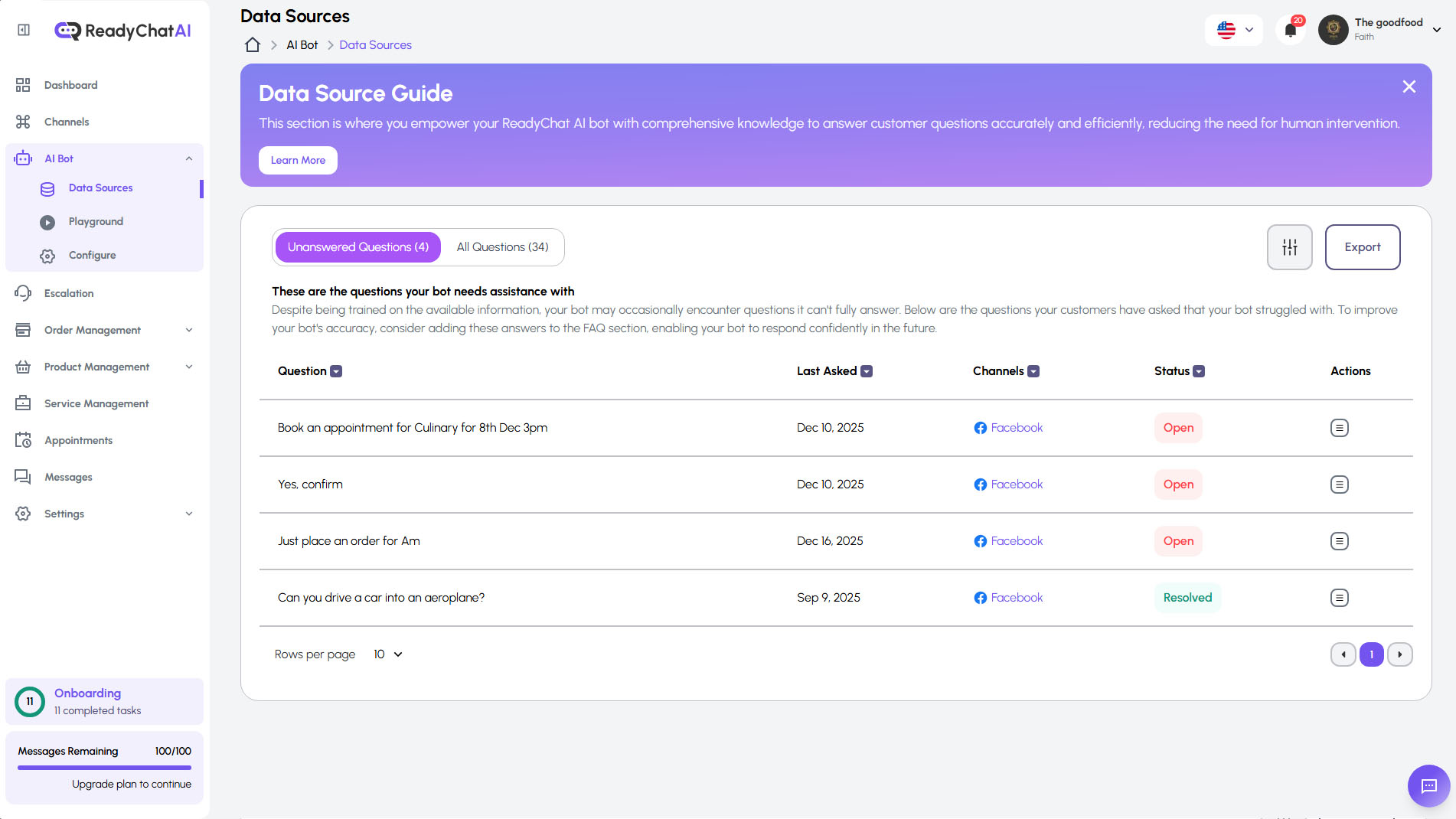 The main interface for managing your AI's Data Sources.
Overview
The Data Sources page focuses on Q&A Management - directly adding and managing question-and-answer pairs for your bot. This is ideal for common FAQs, addressing previously unanswered customer queries, and providing precise information.
Looking for other data import methods?
- Web Scraping: Extract content from websites automatically. See the Products page (Web Scraping tab).
- Import Files: Bulk import products via CSV. See the Products page (Import Files tab).
Managing Questions
This is your central hub for manually teaching your bot. It helps you manage existing knowledge and address new queries that your bot couldn't handle.
Navigating Question Lists: "Unanswered Questions" vs. "All Questions"
You can toggle between two main lists:
Unanswered Questions
(e.g., "Unanswered Questions (9)")
This list is crucial. It shows questions that customers asked but your bot couldn't answer from its existing knowledge base. The descriptive text "These are the questions your bot needs assistance with..." highlights its importance. Prioritizing these helps you continuously improve your bot's accuracy. The table typically displays columns like:
- Question: The exact query from the customer.
- Products: Indicates if the question is linked to a specific product. A message like "This question will not be displayed because it is not associated with any product" may appear if product linking is required for the bot to use this Q&A effectively.
- Last Asked: The date the question was most recently posed.
- Channels: The social media platform (e.g., 📘 Facebook) where the question originated.
- Status: The current status (e.g., "Open" if it still needs an answer).
- Actions: Provides options to manage the question, such as answering or editing it.
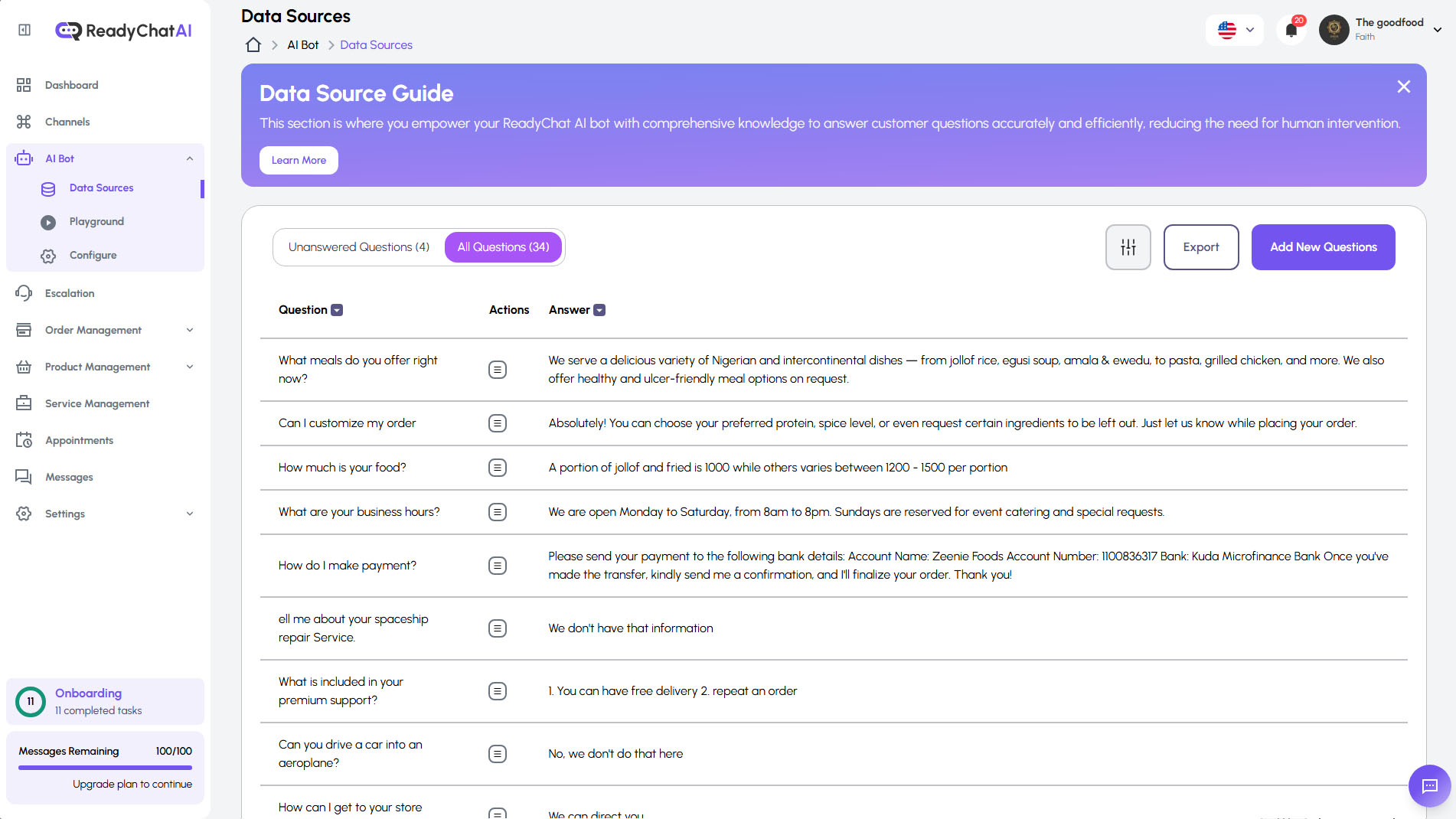
All Questions
(e.g., "All Questions (16)")
This view displays all the question-and-answer pairs currently stored in your bot's knowledge base. This includes questions you've proactively added and those you've answered from the "Unanswered Questions" list. The table here might show columns like:
- Question: The stored question.
- Products: Any product(s) associated with this Q&A.
- Actions: Options to edit or delete the Q&A pair.
- Answer: The stored answer for the question.
Answering an Unanswered Question or Adding a New One
When you click to answer an unanswered question or use the "Add New Questions" button, you'll typically be directed to a dedicated interface:
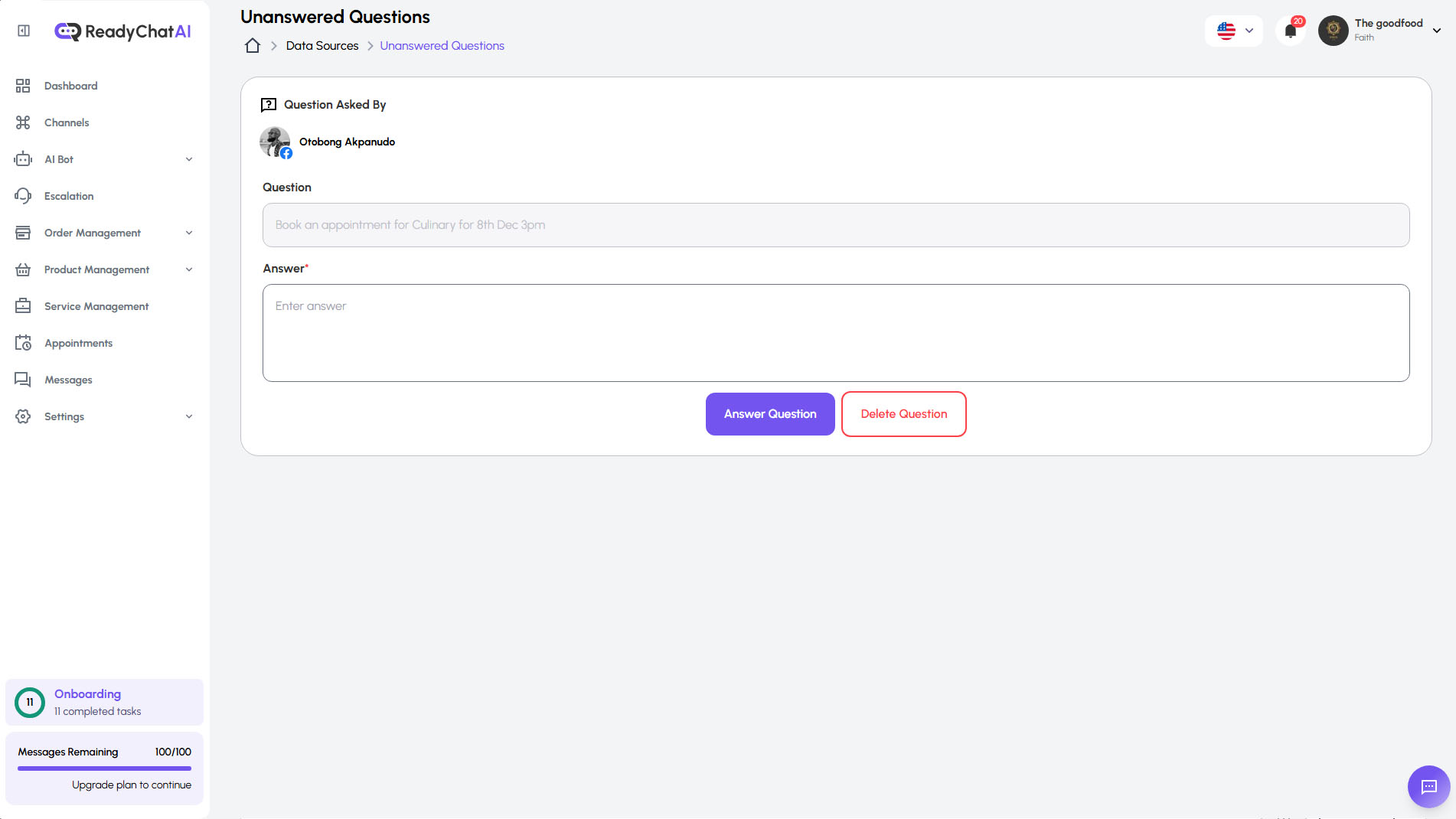
Adding or editing a Question and Answer pair.
The interface includes:
- A "Back" button allows you to return to the previous list.
- Question Asked By: May show anonymized user information if it's an existing unanswered question.
- Note on Product Association: A reminder like "This question will not be displayed because it is not associated with any product" may appear, emphasizing the importance of linking Q&As to products where relevant.
- Question: For new Q&As, you'll enter the question here. For unanswered ones, it will be pre-filled.
- Answer: A text field where you provide the clear, concise, and helpful answer your bot should use.
- Link the Question to Product(s): A crucial dropdown or selection field to associate this Q&A pair with one or more of your products. This helps the bot provide contextually relevant answers, especially if the same question might have different answers depending on the product.
- Click the "Answer Question" (or a similar "Save Question") button to store this information and train your bot.
Other Key Actions
- Add New Questions: This button allows you to proactively populate your bot's knowledge base with Q&A pairs for questions you anticipate customers might ask.
- Export: This function lets you download your Q&A data, which can be useful for backups, offline review, or transferring to other systems.
- Filter (🔍): The filter icon typically opens options to sort or narrow down the displayed list of questions based on criteria such as channel, status, date range, or associated product.
Related Features
For other ways to add data to your ReadyChatAI system:
- Web Scraping: Extract product information from websites automatically. Located under Products > Web Scraping tab.
- Import Files: Bulk import products via CSV files. Located under Products > Import Files tab.
Best Practices for Managing Data Sources
- Prioritize Unanswered Questions: Regularly check and address questions in the "Unanswered Questions" list. This is the most direct way to improve your bot's accuracy and customer satisfaction.
- Be Clear, Concise, and Customer-Centric: Write answers in simple language that is easy for customers to understand. Formulate questions as your customers would ask them.
- Link to Products Accurately: When a question or answer is specific to a product or service, ensure you link it correctly. This prevents confusion and ensures contextual responses.
- Keep Information Current: Your business evolves. If product details, pricing, policies, or services change, remember to update the relevant Q&As in your Data Sources.
- Test Regularly: After adding new data, use the Playground or interact with your bot on live channels to ensure it's responding as expected.